1. Scope of User Manual
This manual explains the actions to be taken by a Bulk Waste Generator (BWG) applicant to create an account, submit a registration form, track application status, respond to authority remarks including correction and rejection, download the registration certificate, raise a grievance and submit an event intimation form.
2. Prerequisites
- Laptop/ PC with a stable internet connection
- Mobile No. and Email should not previously be registered on the Solid Waste Management (SWM) 2026 Centralized Online Portal, with provisions to receive One-Time Passwords (OTPs).
- Property Tax Document or Building Approval Plan
- Water Consumption Bill
3. New User Registration
- Open the SWM Portal. Click on “Register Now” on the landing page.
- Select “Bulk Waste Generator” as the registration category.
- Enter organization name and authorized person details (name, designation, email address and mobile number).
- Complete the CAPTCHA to submit registration request.
- Enter the OTP sent to the registered mobile number and email address.
- After successful OTP verification, enter and confirm your password. The password must contain alphanumeric and special characters and be of at least eight characters.
- Submit the password to continue with the registration application.
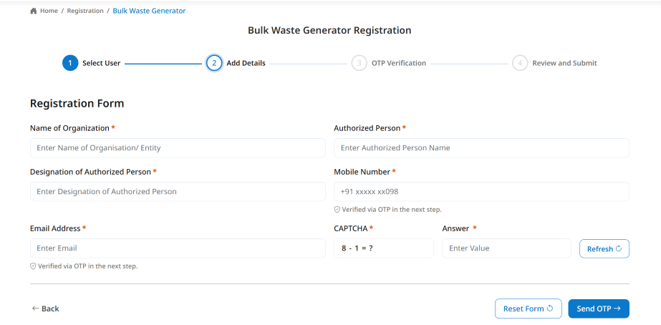 Figure 1: BWG Registration Account Set-up
4. Sign in (Existing User) to the Portal
Open the SWM Portal. Click on “Login” on the landing page.
4.1 Password-based Login
- Choose “Login with Password”.
- Enter the registered email address or mobile number, password and CAPTCHA.
- Select “Login”. The portal redirects to the BWG dashboard.
4.2 OTP-based Login
- Choose “Login with OTP”.
- Enter the registered email address or mobile number and complete the CAPTCHA.
- Enter the OTPs sent to the registered mobile number or email address.
- Upon verification, the portal redirects to the BWG dashboard.
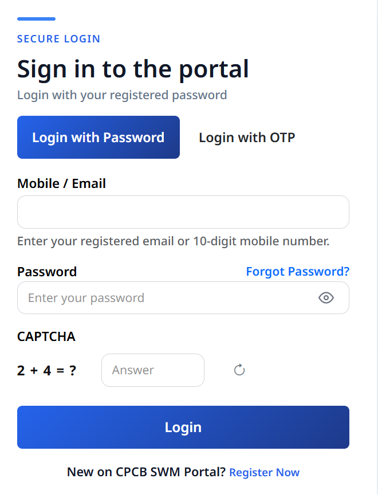 Figure 2: Login to the SWM 2026 Portal
5. BWG Registration Application
- Upon login, select “My Applications” from the available services.
- Start a new registration by clicking on “Start Form” or open an existing draft application.
- The basic details of the organization are prefilled from sign-up stage. All fields except email address and mobile number are editable at this stage.
- Fill in the remaining details and click on “Next” to proceed to BWG Eligibility Assessment.
- Enter the Floor Area, Water Consumption and Waste Generation data to check BWG Eligibility.
- If BWG Eligibility Criteria are not met, the applicant can select “Edit” to correct the details or “Close” the window to exit.
- If the BWG Eligibility Criteria are met, the applicant can click on “Continue” to proceed with the application.
- Enter all the required data.
- Click on “Save & Continue to Documents” to proceed to Document Uploads.
- Upload the required documents and attest to the self-declaration. Click on “Save as Draft” to return to the application later. Alternatively, click on “Save & Proceed” to continue with the fee payment.
- Select “Pay & Submit” to complete the payment and submit the registration application.
- The application status is now “Under Review” with the appropriate Urban Local Body (ULB)/ District Panchayat (DP). Track the application status, download the acknowledgment receipt and view the submitted application by navigating to the “My Applications” section.
 Figure 3: Start BWG Registration Form
 Figure 4: Draft BWG Registration Form
 Figure 5: “Under Review” Application Status upon Registration Form Submission
6. Respond to Correction Requested
Upon the application review, the ULB/DP can request for one round of correction. The application status changes to “Correction Requested”.
- Upon login, view the “Correction Requested” status by navigating to the “My Applications” section.
- View the ULB/DP comments from the application status table or by opening the application.
- Click on the “Edit” icon to correct the application based on the comments provided by the ULB/DP.
- Click on “Save & Proceed” to continue with differential fee payment.
- Select “Pay & Submit” to complete the differential fee payment and resubmit the application.
- The application status changes to “Under Review” with the appropriate ULB/DP.
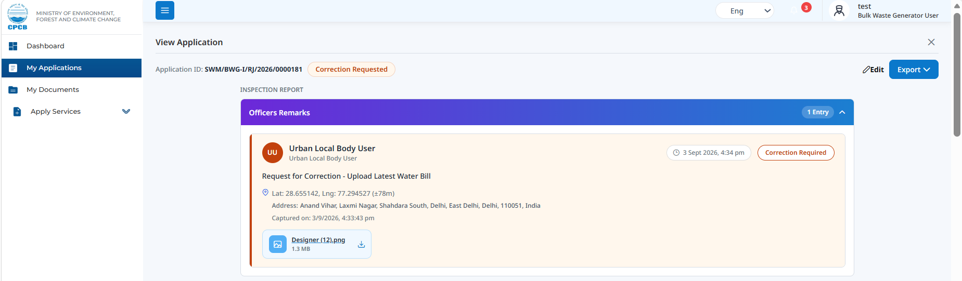 Figure 6: Correction Requested Comments Visible in the Application
 Figure 7: Correction Requested Comments Visible in the Application Status Table
 Figure 8: “Under Review” Application Status upon Correction
7. Approved Application and Certificate Download
If the ULB/DP approves the registration application, the application status changes to “Approved”
- Upon login, view the “Approved” application by navigating to the “My Applications” section.
- Click on “Download” to download the certificate.
 Figure 9: “Approved” Application Status
8. Respond to Rejection Due to Incorrect Details
Upon the application review, the ULB/DP can reject the application based on incorrect details provided by the applicant. The application status changes to “Rejected”.
- Upon login, view the “Rejected Application” status by navigating to the “My Applications” section.
- View the ULB/DP comments from the application status table or by opening the application.
- Click on the “Take Action” icon and select either “Log Appeal (Level 1)” or “File Amendment”.
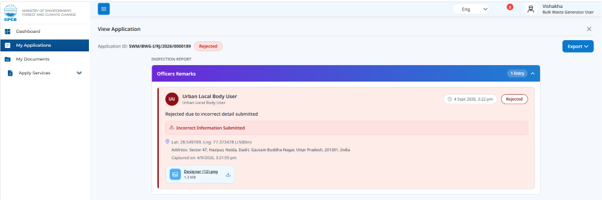 Figure 10: Rejection Comments Visible in the Application
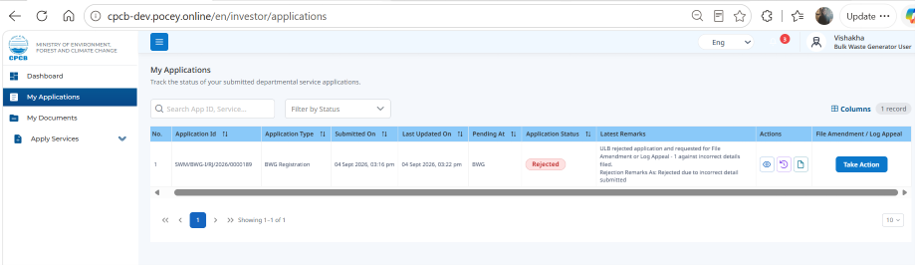 Figure 11: Rejection Comments Visible in the Application Status Table
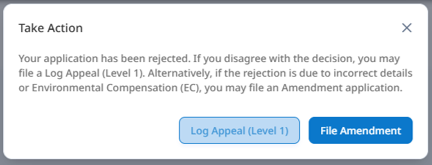 Figure 12: Take Action Options Upon Rejection of Application
File Amendment
- Click on “File Amendment” to begin the request.
- Provide “Details of Incorrect Information” and click on “Submit for Verification”.
- The application form will re-open in editable format
- Correct the application based on the comments provided by the ULB/DP.
- Click on “Save & Proceed” to continue with amendment fee payment.
- Select “Pay & Submit” to complete the amendment payment and resubmit the application.
- The application status now changes to “Under Review” with District Magistrate (DM).
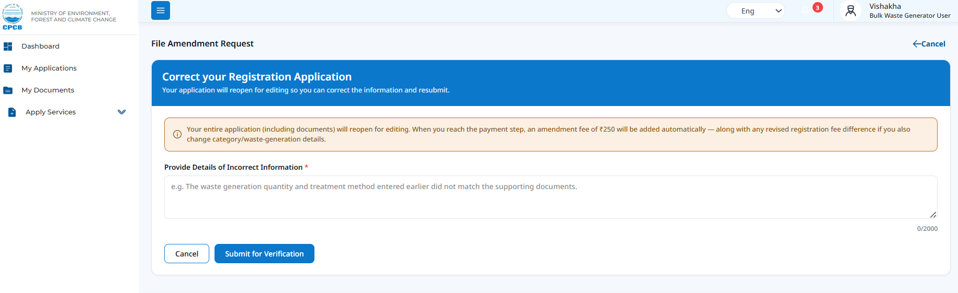 Figure 13: File Amendment Request
Log Appeal (Level 1)
- Click on “Log Appeal (Level 1)” to begin the request.
- Provide “Justification” based on the ULB/DP comments and upload the supporting documents.
- Click on “Submit Appeal”.
- The application status now changes to “Under Review” with DM.
9. Respond to Rejection Due to Environmental Compensation (EC) Non-Compliance
Upon the application review, the ULB/DP can reject the application based on EC Non-Compliance. The application status changes to “Rejected”.
- Upon login, view the “Rejected Application” status by navigating to the “My Applications” section.
- View the ULB/DP comments from the application status table or by opening the application.
- Click on the “Take Action” icon to either “Log Appeal (Level 1)” or “File Amendment”.
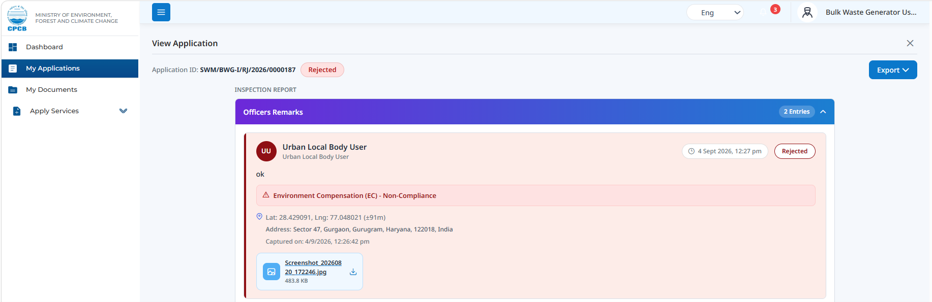 Figure 14: Rejection Comments Visible in the Application
 Figure 15: Rejection Comments Visible in the Application Status Table
File Amendment
- Click on “File Amendment” to begin the amendment request
- Provide Details of EC paid and click on “Submit for Verification”.
- The application form will re-open in editable format.
- Correct the application based on the comments provided by the ULB/DP.
- Click on “Save & Proceed” to continue with amendment fee payment.
- Select “Pay & Submit” to complete the amendment payment and resubmit the application.
- The application status changes to “Under Review” with DM.
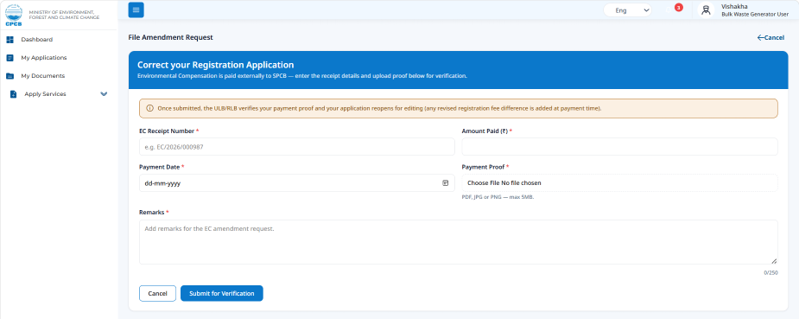 Figure 16: EC Payment Details
 Figure 17: “Under Review” Application Status upon Amendment
Log Appeal (Level 1)
- Click on “Log Appeal (Level 1)” to begin the request.
- Provide “Justification” based on the ULB/DP comments and upload the supporting documents.
- Click on “Submit Appeal”.
- The application status now changes to “Under Review” with DM.
10. Dashboard
Select “Dashboard” from the available services to view the following:
- Organization basic details
- Waste generation data
- Registration application status
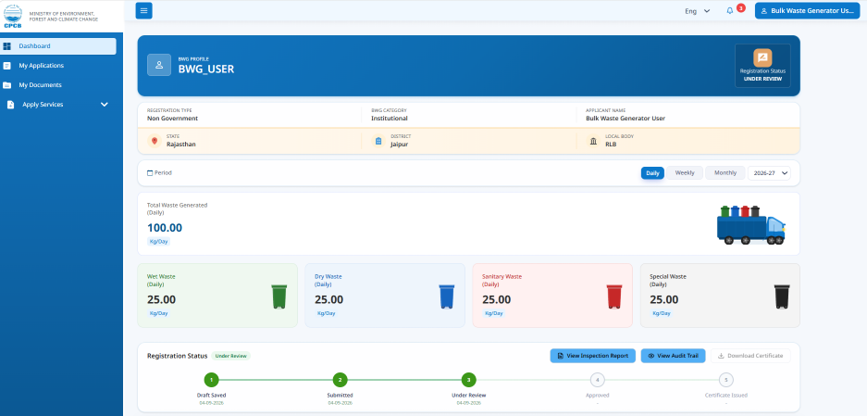 Figure 18: BWG Dashboard
11. Grievances
- Click on “Apply Services” from the available services section.
- Click on “Grievance”.
- To raise a new grievance, click on “Raise Grievance”.
- To track submitted grievances, click on “My Grievances”.
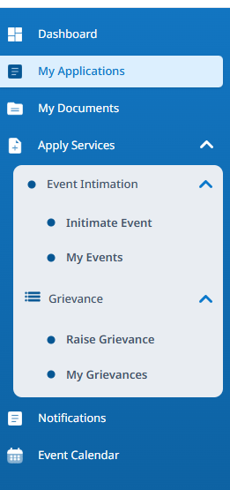 Figure 19: Apply Service Section
12. Event Intimation
- Click on “Apply Services” from the available services section
- Click on “Event Intimation”.
- To submit an event intimation form, click on “Intimate Event”.
- To view event intimation history, click on “My Events”.
1. Scope of User Manual
This manual explains the actions to be taken by a Waste Facility applicant to create an account, submit a registration form, track application status, respond to authority remarks including correction and rejection, download the registration certificate, raise a grievance and submit an event intimation form.
2. Prerequisites
- Laptop/ PC with a stable internet connection
- Mobile No. and Email should not previously be registered on the Solid Waste Management (SWM) 2026 Centralized Online Portal, with provisions to receive One-Time Passwords (OTPs).
- Facility Layout Plan
- Consent to Establish (CTE) Document
- Consent to Operate (CTO) Document
- State Pollution Control Board (SPCB) Authorization Document
- Environmental Clearance Document
3. New User Registration
- Open the SWM Portal. Click on “Register Now” on the landing page.
- Select “Waste Facility” as the registration category.
- Select the “Facility Type”.
- Enter organization name and authorized person details (name, designation, email address and mobile number).
- Complete the CAPTCHA to submit the registration request.
- Enter the OTP sent to the registered mobile number and email address.
- After successful OTP verification, enter and confirm your password. The password must contain alphanumeric and special characters and be of at least eight characters.
- Submit the password to continue with the registration application.
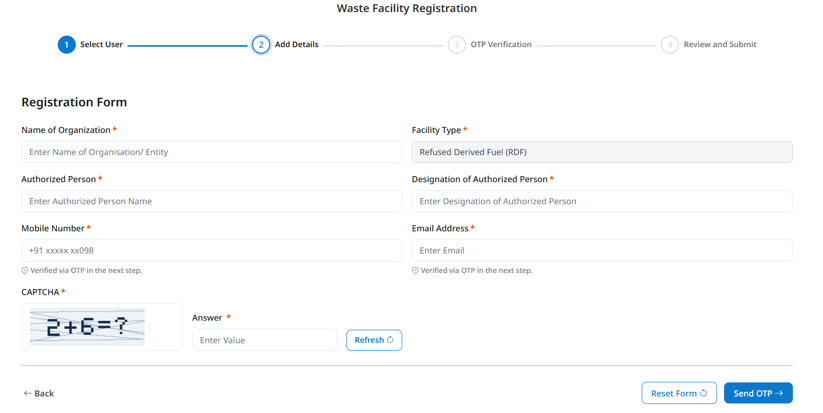 Figure 1: Waste Facility Registration Account Set-up
4. Sign in (Existing User) to the Portal
Open the SWM Portal. Click on “Login” on the landing page.
4.1 Password-based Login
- Choose login using password.
- Enter the registered email address or mobile number, password and CAPTCHA.
- Select Login. The portal redirects to the BWG dashboard.
4.2 OTP-based Login
- Choose Login using OTP.
- Enter the registered email address or mobile number and complete the CAPTCHA.
- Enter the OTPs sent to the registered mobile number or email address.
Upon verification, the portal redirects to the BWG dashboard.
Figure 2: Login to the SWM 2026 Portal
5. Facility Registration Application
- Upon login, select “My Applications” from the available services. Click on “Start Form” to start a new registration. Alternatively, click on “Resume Form” to continue with an existing draft application
- The basic details of the facility are prefilled from the sign-up stage. All fields except email address and mobile number are editable at this stage.
- Enter all the required information.
- Click on “Save & Continue to Documents” to proceed to document uploads.
- Upload the required documents. Click on “Save as Draft” to return to the application later. Alternatively, click on “Save & Proceed” to continue with the fee payment.
- Click on “Pay & Submit” to complete the payment and submit the registration application.
- The application status is now “Under Review” with the appropriate Urban Local Body (ULB)/ District Panchayat (DP). Track the application status, download the acknowledgment receipt and view the submitted application by navigating to the “My Applications” section.
 Figure 3: Start Facility Registration Form
 Figure 4: Draft Facility Registration Form
 Figure 5: “Under Review” Application Status upon Registration Form Submission
6. Respond to Correction Requested
Upon the application review, the ULB/DP can request for one round of correction. The application status changes to “Correction Requested”.
- Upon login, view the “Correction Requested” status by navigating to the “My Applications” section.
- View the ULB/DP comments from the application status table or by opening the application
- Click on the “Edit” icon to correct the application based on the comments provided by the ULB/DP.
- Click on “Save & Proceed” to continue with differential fee payment.
- Click on “Pay & Submit” to complete the differential fee payment and resubmit the application.
- The application status now changes to “Under Review” with the appropriate ULB/DP.
 Figure 6: Correction Requested Comments Visible in the Application Status Table
7. Approved Application and Certificate Download
If the ULB/DP approves the registration application, the application status changes to “Approved”
- Upon login, view the “Approved” application by navigating to the “My Applications” section.
- Click on “Download” to download the certificate.
 Figure 7: “Approved” Application Status
8. Respond to Rejection Due to Incorrect Details
Upon the application review, the ULB/DP can reject the application based on incorrect details provided by the applicant. The application status changes to “Rejected”.
- Upon login, view the “Rejected Application” status by navigating to the “My Applications” section.
- View the ULB/DP comments from the application status table or by opening the application.
- Click on “Take Action” and select either “Log Appeal (Level 1)” or “File Amendment”.
 Figure 8: Rejection Comments Visible in the Application Status Table
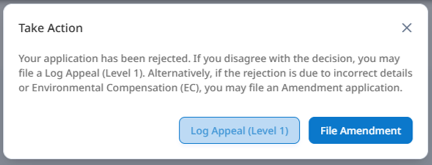 Figure 9: “Take Action” Options Upon Rejection of Application
8.1 File Amendment
- Click on “File Amendment” to begin the request.
- Provide “Details of Incorrect Information” and click on “Submit for Verification”.
- The application form will re-open in editable format.
- Correct the application based on the comments provided by the ULB/DP.
- Click on “Save & Proceed” to continue with amendment fee payment.
- Select “Pay & Submit” to complete the amendment payment and resubmit the application.
- The application status now changes to “Under Review” with District Magistrate (DM).
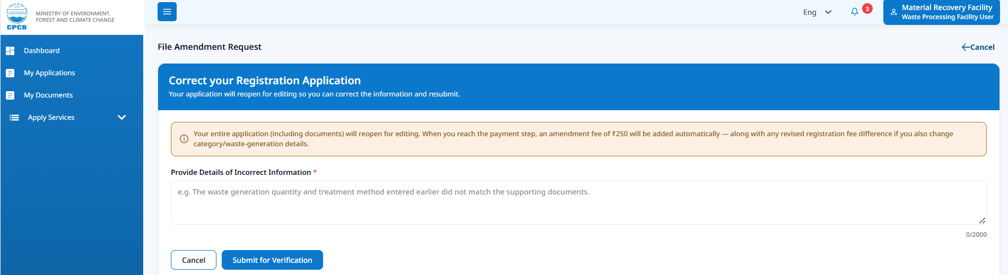 Figure 10: File Amendment Request
8.2 Log Appeal (Level 1)
- Click on “Log Appeal (Level 1)” to begin the request.
- Provide “Justification” based on the ULB/DP comments and upload the supporting documents.
- Click on “Submit Appeal”.
- The application status now changes to “Under Review” with DM.
9. Respond to Rejection Due to Environmental Compensation (EC) Non-Compliance
Upon the application review, the ULB/DP can reject the application based on EC Non-Compliance. The application status changes to “Rejected”.
- Upon login, view the “Rejected Application” status by navigating to the “My Applications” section.
- View the ULB/DP comments from the application status table or by opening the application.
- Click on “Take Action” and select either “Log Appeal (Level 1)” or “File Amendment”.
9.1 File Amendment
- Click on “File Amendment” to begin the amendment request.
- Provide details of EC paid and click on “Submit for Verification".
- The application form will re-open in editable format.
- Correct the application based on the comments provided by the ULB/DP.
- Click on “Save & Proceed” to continue with amendment fee payment.
- Select “Pay & Submit” to complete the amendment payment and resubmit the application.
- The application status now changes to “Under Review” with DM.
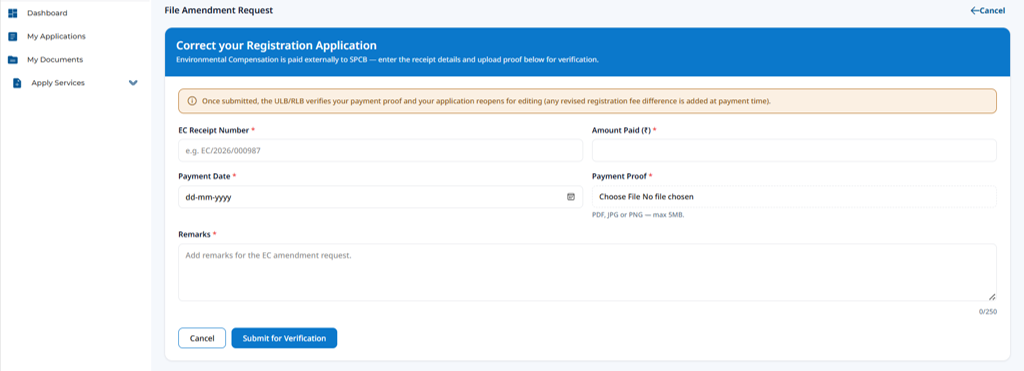 Figure 11: File Amendment Request
9.2 Log Appeal (Level 1)
- Click on “Log Appeal (Level 1)” to begin the request.
- Provide “Justification” based on the ULB/DP comments and upload the supporting documents.
- Click on “Submit Appeal”.
- The application status now changes to “Under Review” with DM.
10. Dashboard
Select “Dashboard” from the available services to view the following:
- Organization basic details
- Waste generation data
- Registration status
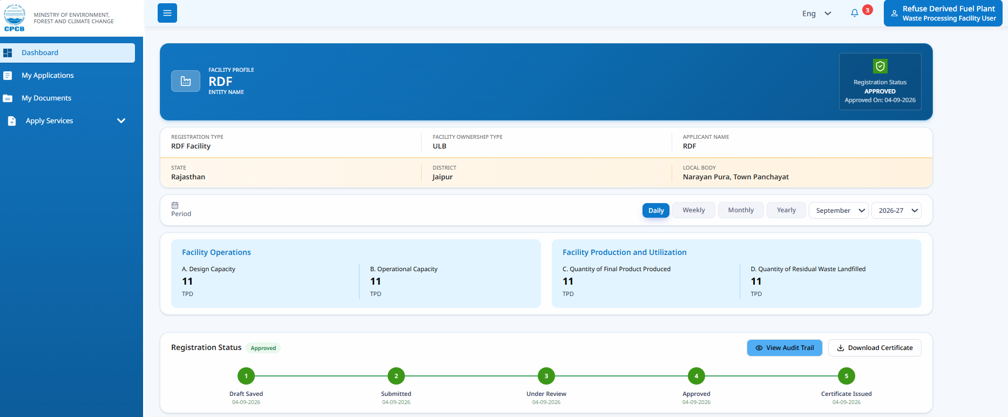 Figure 12: Facility Dashboard
11. Grievances
Click on “Apply Services” from the available services section.
Click on “Grievance”.
To raise a new grievance, click on “Raise Grievance”.
To track submitted grievances, click on “My Grievances”.
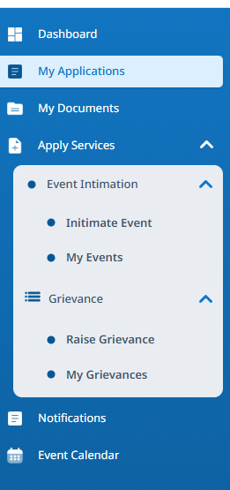 Figure 13: Apply Services Section
12. Event Intimation
- Click on “Apply Services” from the available services section
- Click on “Event Intimation”.
- To submit an event intimation form, click on “Intimate Event”.
- To view event intimation history, click on “My Events”.
1. Scope of User Manual
This manual explains the actions to be taken by Nodal Officer of the Urban Local Body (ULB) to create an account, submit a registration form, track its application status, and respond to registration applications submitted by Bulk Waste Generators (BWGs) & Facilities within their jurisdiction.
2. Prerequisites
- Laptop/ PC with a stable internet connection
- Mobile No. and Email should not previously be registered on the Solid Waste Management (SWM) 2026 Centralized Online Portal, with provisions to receive One-Time Passwords (OTPs).
3. New User Registration
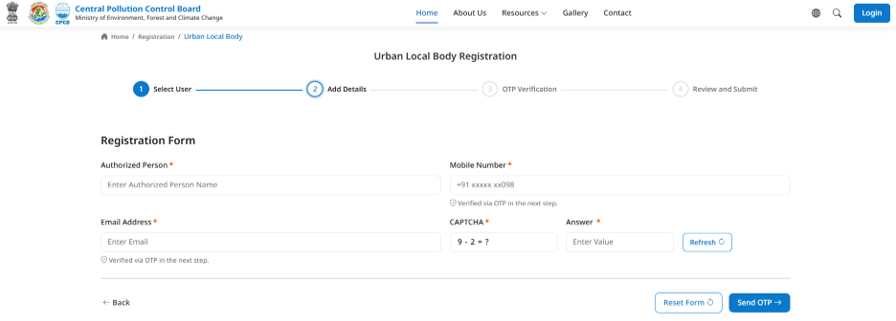
- Open the SWM Portal. Click on “Register Now” on the landing page.
- Select “Urban Local Body” as the registration category.
- Enter the authorized person details (name, email address and mobile number).
- Complete the CAPTCHA to submit the registration request.
- Enter the OTP sent to the registered mobile number and email address.
- After successful OTP verification, enter and confirm your password. The password must contain alphanumeric and special characters and be of at least eight characters.
- Submit the password to continue with the registration application.
4. Sign in (Existing User) to the Portal
Open the SWM Portal. Click on “Login” on the landing page.
4.1 Password-based Login
- Choose “Login with Password".
- Enter the registered email address or mobile number, password and CAPTCHA.
- Select “Login”. The portal redirects to the ULB dashboard.
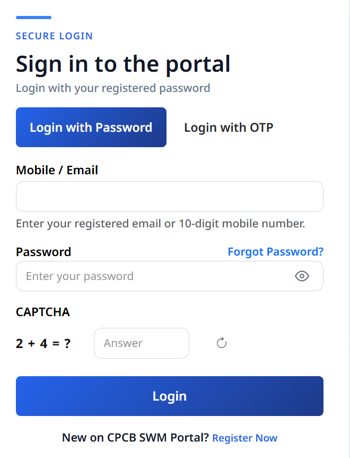
4.2 OTP-based Login
- Choose “Login with OTP".
- Enter the registered email address or mobile number and complete the CAPTCHA.
- Enter the OTPs sent to the registered mobile number or email address.
- Upon verification, the portal redirects to the ULB dashboard.
5. ULB Registration Application
- Upon login, select “Apply Services” from the available services. Click on “ULB Registration” to start a new registration. Alternatively, select “My Applications” from the available services to continue with an existing draft application.
- The basic details of the nodal officer are prefilled from the sign-up stage. All fields except email address and mobile number are editable at this stage.
- Enter all the required information and click on “Submit Form” to submit the registration application.
- The application status is now “Under Review” with the District Magistrate (DM). Track the application status, download the acknowledgment receipt and view the submitted application by navigating to the “My Applications” section.
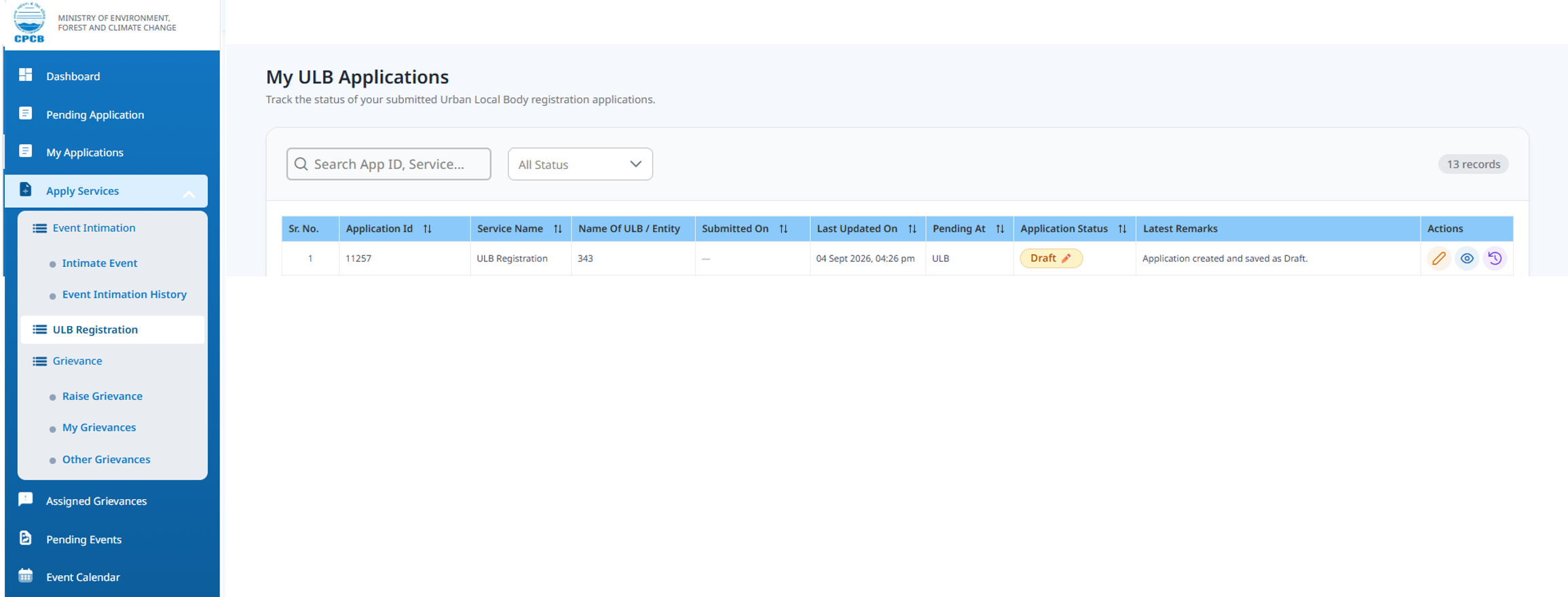

6. Respond to “Correction Requested”
Upon the application review, the DM can request for one round of Correction. The application status changes to “Correction Requested”.
- Upon login, view the “Correction Requested” status by navigating to the “My Applications” section.
- View the DM comments from the application status table or by opening the application.
- Click on the “Edit” icon to correct the application based on the comments provided by the DM.
- Click on “Submit Form” to resubmit the application.
- The application status changes to “Under Review” with the DM.
7. Approved Application
If the DM approves the registration application, the application status changes to “Approved”. Upon login, view the “Approved” application by navigating to the “My Applications” section.

8. Respond to Other Applications
The ULB must “Approve”, “Request for Correction” or “Reject” each registration application received.
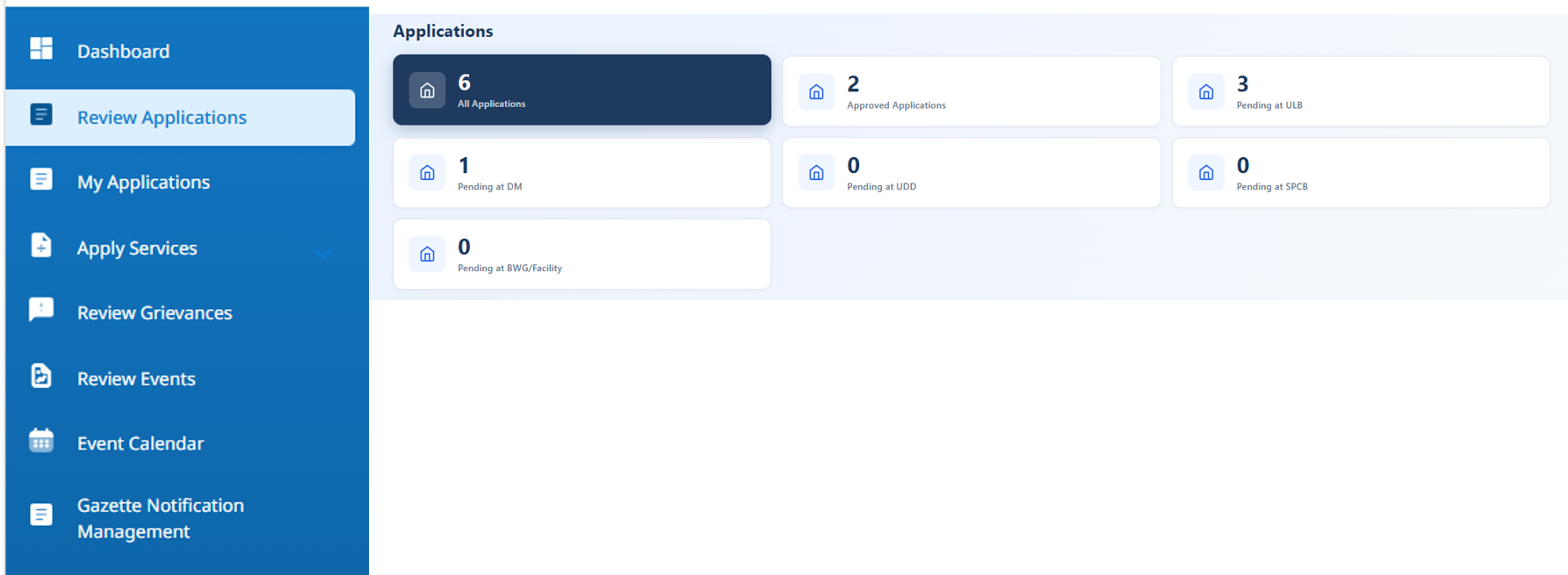
- Click on “Review Applications” from the available services section.
- Track the status of each application from the application status table.
- To review an application, click on the “Edit” icon.
- In the “Document Checklist” section, “Verify” or “Reject” each uploaded document and provide appropriate reasoning in the “Comment” area.
8.1 Approving an Application
- In the Department Action section, upload the Photographs, Capture your Geolocation and click on “Approve”.
- Remarks, Inspection Documents and Site Videos can be voluntarily uploaded.
8.2 Requesting an Application for Correction
- In the Department Action section, provide Remarks, Capture your Geolocation and click on “Correction Requested”.
- Inspection Documents, Site Photos and Site Videos can be voluntarily uploaded.
8.3 Rejecting an Application
- In the Department Action section, select the “Rejection Category- Incorrect Information Submitted or Environmental Compensation (EC) Non-Compliance”, provide Remarks, Capture your Geolocation and click on “Reject”.
- Inspection Documents, Site Photos and Site Videos can be voluntarily uploaded.
9. Dashboard
Select “Dashboard” from the available services to view the following:
- ULB basic details
- BWG registration status
- Facility wise registration status
10. Grievances
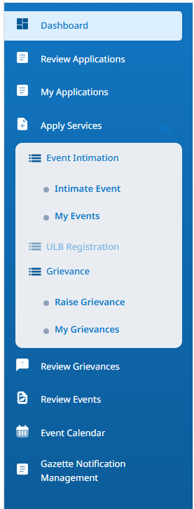
- Click on “Apply Services” from the available services section
- Click on “Grievance”.
- To raise a new grievance, click on “Raise Grievance”.
- To track your submitted grievances, click on “My Grievances”.
- Click on “Review Grievance” to take action on grievances assigned to you.
11. Event Intimation
- Click on “Apply Services” from the available services section.
- Click on “Event Intimation”.
- To submit an event intimation form, click on “Intimate Event”.
- To view event intimation history, click on “My Events”.
1. Scope of User Manual
This manual explains the actions to be taken by Nodal Officer of the Rural Local Body – District Panchayat (RLB-DP) to create an account, submit a registration form, track its application status, and respond to registration applications submitted by Bulk Waste Generators (BWGs) & Facilities within their jurisdiction.
2. Prerequisites
- Laptop/ PC with a stable internet connection
- Mobile No. and Email should not previously be registered on the Solid Waste Management (SWM) 2026 Centralized Online Portal, with provisions to receive One-Time Passwords (OTPs).
3. New User Registration
- Open the SWM Portal. Click on “Register Now” on the landing page.
- Select “District Panchayat” as the registration category.
- Enter the authorized person details (name, email address and mobile number).
- Complete the CAPTCHA to submit the registration request.
- Enter the OTP sent to the registered mobile number and email address.
- After successful OTP verification, enter and confirm your password. The password must contain alphanumeric and special characters and be of at least eight characters.
- Submit the password to continue with the registration application.
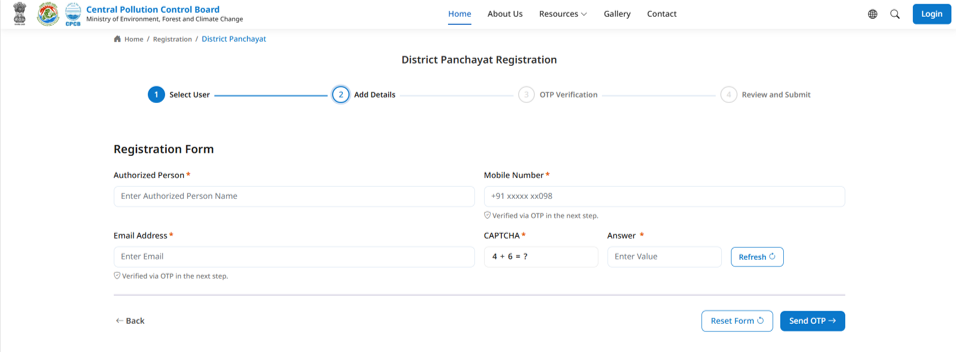 Figure 1: DP Registration Account Set-up
4. Sign in (Existing User) to the Portal
Open the SWM Portal. Click on “Login” on the landing page.
4.1 Password-based Login
- Choose “Login with Password".
- Enter the registered email address or mobile number, password and CAPTCHA.
- Select “Login”. The portal redirects to the DP dashboard.
Figure 2: Login to the SWM 2026 Portal
4.2 OTP-based Login
- Choose “Login with OTP".
- Enter the registered email address or mobile number and complete the CAPTCHA.
- Enter the OTPs sent to the registered mobile number or email address.
- Upon verification, the portal redirects to the DP dashboard.
5. RLB-DP Registration Application
- Upon login, select “Apply Services” from the available services section. Click on “RLB District Panchayat Self Registration” to start a new registration. Alternatively, select “My Applications” from the available services to continue with an existing draft application.
- The basic details of the nodal officer are prefilled from the sign-up stage. All fields except email address and mobile number are editable at this stage.
- Enter all the required information and click on “Submit Form” to submit the registration application.
- The application status is now “Under Review” with the District Magistrate (DM). Track the application status, download the acknowledgment receipt and view the submitted application by navigating to the “My Applications” section.
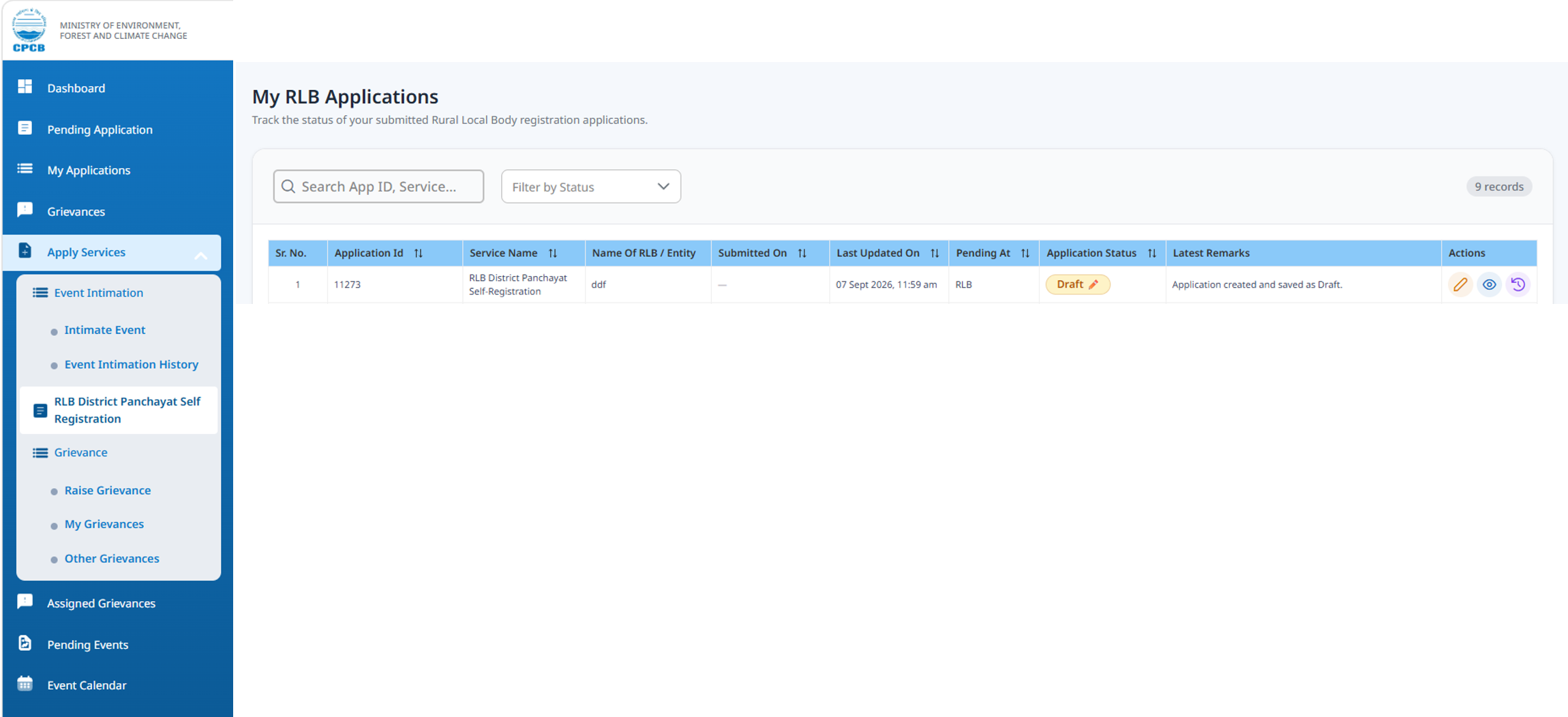 Figure 3: Start or Continue with DP Registration Form
 Figure 4: “Under Review” Application Status upon Registration Form Submission
6. Respond to “Correction Requested”
Upon the application review, the DM can request for one round of correction. The application status changes to “Correction Requested”.
- Upon login, view the “Correction Requested” status by navigating to the “My Applications” section.
- View the DM comments from the application status table or by opening the application.
- Click on the “Edit” icon to correct the application based on the comments provided by the DM.
- Click on “Submit Form” to resubmit the application.
- The application status changes to “Under Review” with the DM.
7. Approved Application
If the DM approves the registration application, the application status changes to “Approved”. Upon login, view the “Approved” application by navigating to the “My Applications” section.
 Figure 5: “Approved” Application Status
8. Respond to Other Applications
The RLB-DP must “Approve”, “Request for Correction” or “Reject” each registration application received.
- Click on “Review Applications” from the available services section.
- Track the status of each application from the application status table.
- To review an application, click on the “Edit” icon.
- In the “Document Checklist” section, “Verify” or “Reject” each uploaded document and provide appropriate reasoning in the “Comment” area.
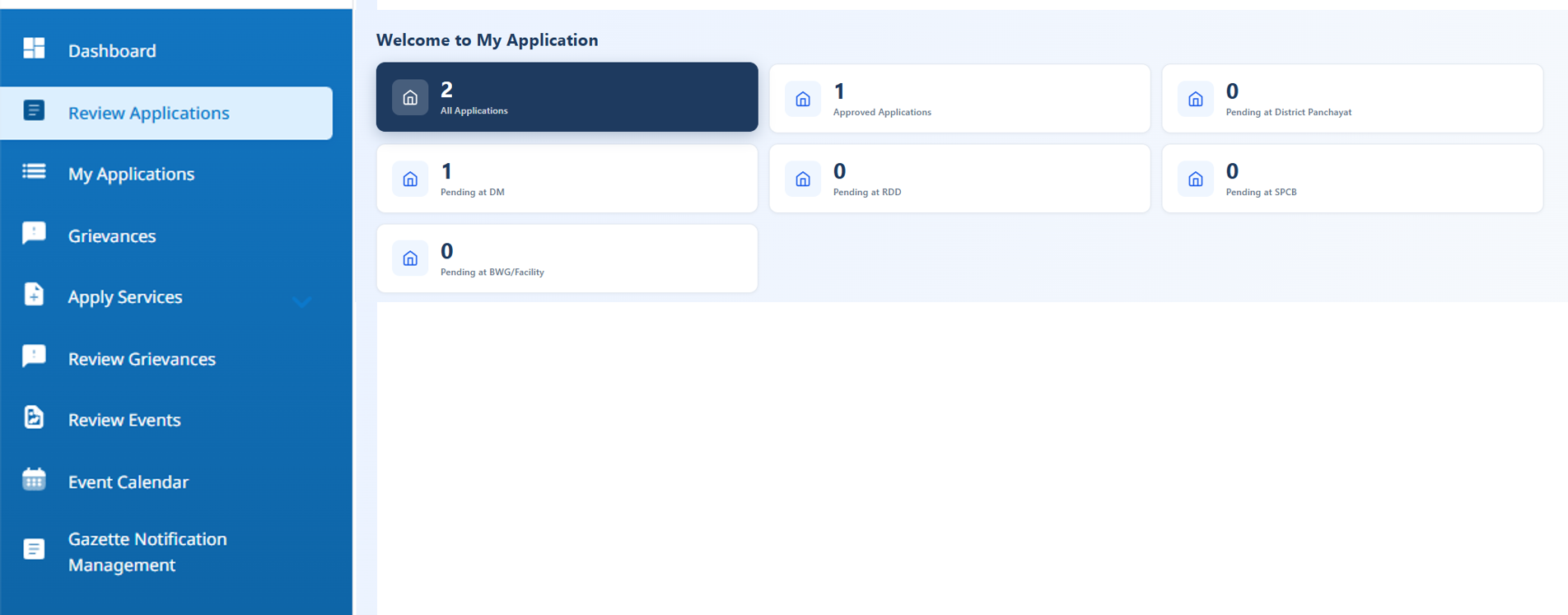 Figure 6: Application Review Status
8.1 Approving an Application
- In the Department Action section, upload the Photographs, Capture your Geolocation and click on “Approve”.
- Remarks, Inspection Documents and Site Videos can be voluntarily uploaded.
8.2 Requesting an Application for Correction
- In the Department Action section, provide Remarks, Capture your Geolocation and click on “Correction Requested”.
- Inspection Documents, Site Photos and Site Videos can be voluntarily uploaded.
8.3 Rejecting an Application
- In the Department Action section, select the “Rejection Category - Incorrect Information Submitted or Environmental Compensation (EC) Non-Compliance”, provide Remarks, Capture your Geolocation and click on “Reject”.
- Inspection Documents, Site Photos and Site Videos can be voluntarily uploaded.
9. Dashboard
Select “Dashboard” from the available services to view the following:
- DP basic details
- BWG registration status
- Facility wise registration status
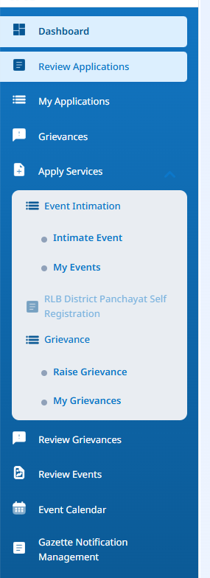
10. Grievances
- Click on “Apply Services” from the available services section
- Click on “Grievance”.
- To raise a new grievance, click on “Raise Grievance”.
- To track your submitted grievances, click on “My Grievances”.
- Click on “Review Grievance” to take action on grievances assigned to you.
11. Event Intimation
- Click on “Apply Services” from the available services section.
- Click on “Event Intimation”.
- To submit an event intimation form, click on “Intimate Event”.
- To view event intimation history, click on “My Events”.
1. Scope of User Manual
This manual explains the actions the Rural Local Body – Gram Panchayat (RLB-GP) Nodal Officer performs to create an account, submit a registration form, track its application status, and respond to registration applications submitted by BWGs & Facilities within their jurisdiction.
2. Prerequisites
- Laptop/ PC with a stable internet connection
- Mobile No. and Email should not previously be registered on the Solid Waste Management (SWM) 2026 Centralized Online Portal, with provisions to receive One-Time Passwords (OTPs).
3. New User Registration
- Open the SWM Portal. Click on “Register Now” on the landing page.
- Select "Gram Panchayat” as the registration category.
- Enter the authorized person details (name, email address and mobile number).
- Complete the CAPTCHA to submit the registration request.
- Enter the OTP sent to the registered mobile number and email address.
- After successful OTP verification, enter and confirm your password. The password must contain alphanumeric and special characters and be of at least eight characters.
- Submit the password to continue with the registration application.
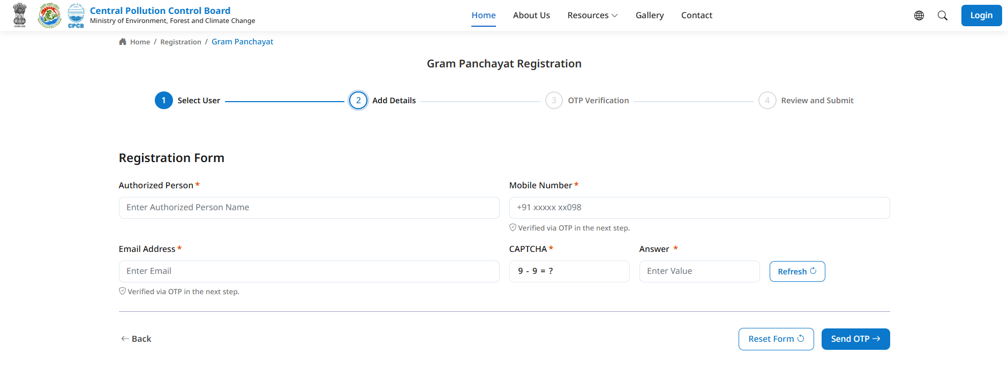 Figure 1: GP Registration Account Set-up
4. Sign in (Existing User) to the Portal
Open the SWM Portal. Click on “Login” on the landing page.
4.1 Password-based Login
- Choose “Login with Password".
- Enter the registered email address or mobile number, password and CAPTCHA.
- Select “Login”. The portal redirects to the ULB dashboard.
Figure 2: Login to the SWM 2026 Portal
4.2 OTP-based Login
- Choose “Login with OTP".
- Enter the registered email address or mobile number and complete the CAPTCHA.
- Enter the OTPs sent to the registered mobile number or email address.
- Upon verification, the portal redirects to the ULB dashboard.
5. RLB-GP Registration Application
- Upon login, select “Apply Services” from the available services. Click on “RLB Gram Panchayat Self Registration” to start a new registration. Alternatively, select “My Applications” from the available services to continue with an existing draft application.
- Fill in the details related to the ULB and its Authorized Nodal Officer, and click on “Next”.
- Enter the Waste Management Details and click on “Submit Form”.
- The application status is now “Under Review” with the DM. Track the application status, download the acknowledgment receipt and view the submitted application by navigation to the “My Applications” section.
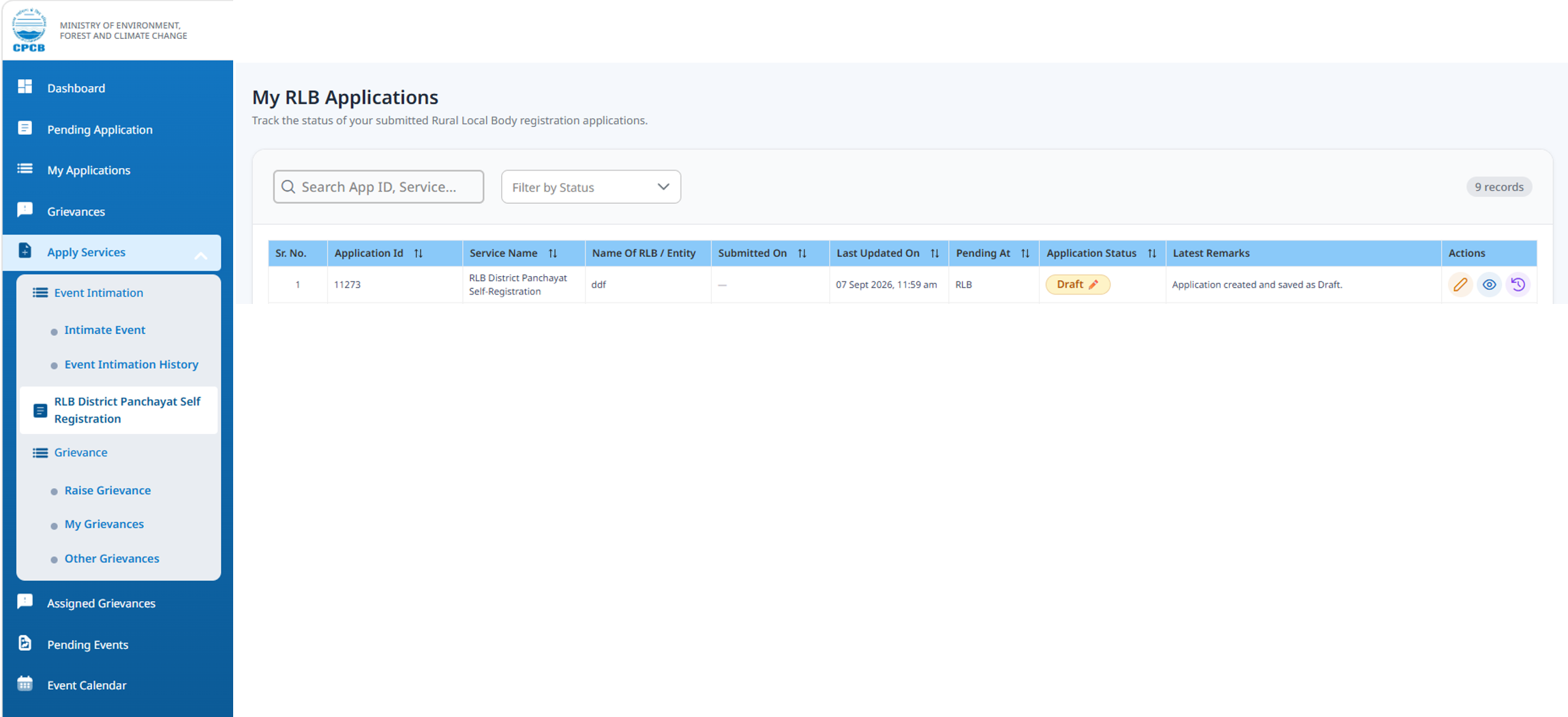 Figure 3: Start or Continue with DP Registration Form
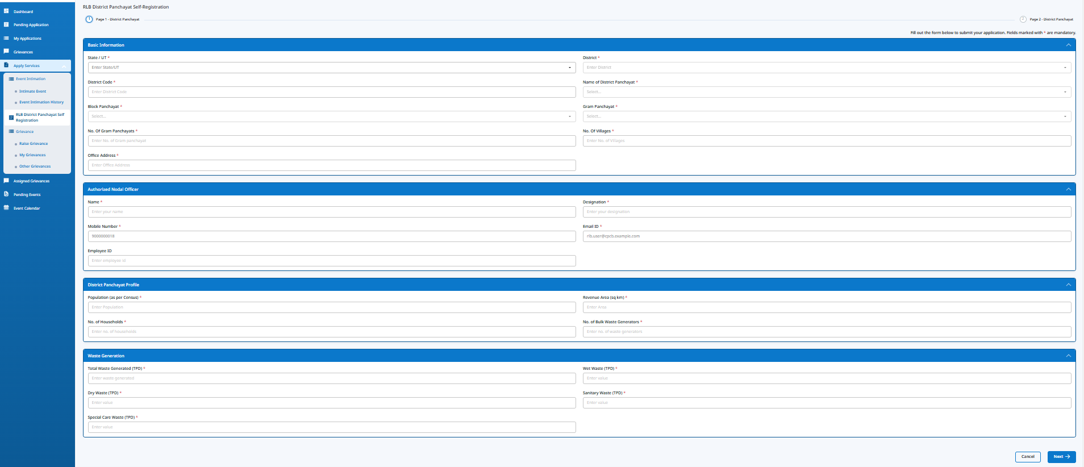 Figure 4: DP Registration Form – Basic Details
 Figure 5: “Under Review” Application Status upon Registration Form Submission
6. Respond to “Correction Requested”
Upon the application review, the DM can request for one Correction. The application status changes to “Correction Requested”.
- Upon login, view the Correction Requested by navigating to the “My Applications” section.
- View the Correction Requested comments from the application status table or by opening the application.
- Click on the “Edit” icon to correct the application and complete the application based on the comments provided by the DM.
- Click on “Submit Form” to resubmit the application.
- The application status changes to “Under Review”.
7. Approved Application
If the DM approves the registration application, the application status changes to “Approved”. Upon login, view the “Approved” application by navigating to the “My Applications” section.
 Figure 6: “Approved” Application Status
8. Respond to Other Applications
The RLB-DP must Approve, Request for Correction or Reject (based on Incorrect Information Provided or EC Non-Compliance) each Registration Application received.
- Upon login, view all the registration applications received by navigating to the “Pending Application” section from the available services.
- Track the status of each application from the application status table.
- To review an application, click on the “Edit” icon.
- In the “Document Checklist” section, “Verify” or “Reject” each uploaded document and provide appropriate reasoning in the “Comment” area.
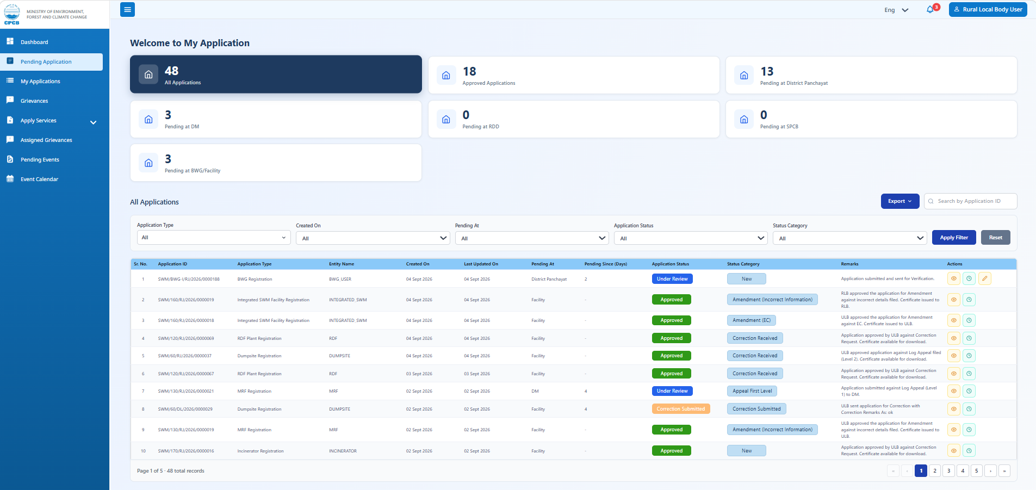 Figure 7: Application Review Status
 Figure 8: Document Checklist
8.1 Approving an Application
- In the Department Action section, upload Site Photos, Capture your Geolocation and Click on “Approve”.
- Remarks, Inspection Documents and Site Videos can be voluntarily uploaded.
8.2 Requesting an Application for Correction
- In the Department Action section, provide Remarks, Capture your Geolocation and click on “Correction Requested”.
- Inspection Documents, Site Photos and Site Videos can be voluntarily uploaded.
8.3 Rejecting an Application
- In the Department Action section, select the Rejection Category (Incorrect Information Submitted or EC Non-Compliance), provide Remarks, Capture your Geolocation and click on “Reject”.
- Inspection Documents, Site Photos and Site Videos can be voluntarily uploaded.
 Figure 9: DP Action
9. Dashboard
Select “Dashboard” from the available services to view the following:
- DP basic details
- BWG registration status
- Facility wise registration status
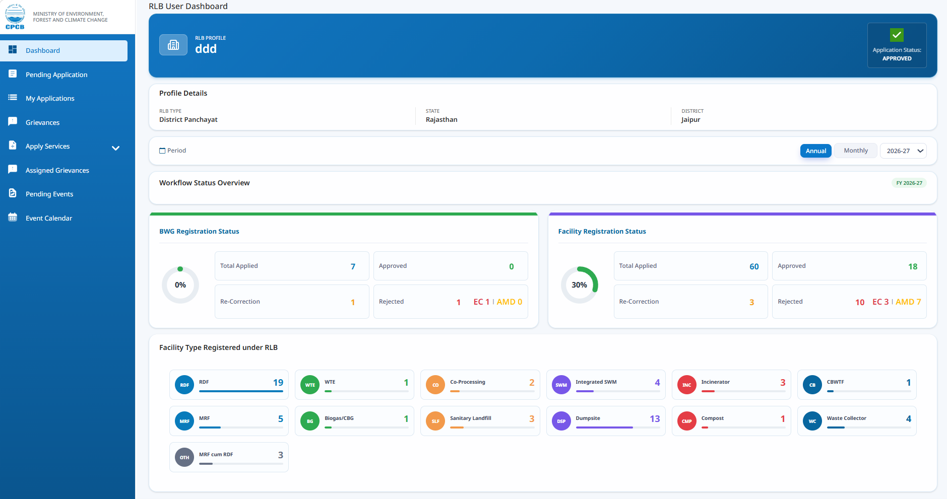 Figure 10: DP Dashboard
1. Scope of User Manual
This manual explains the actions to be taken by Nodal Officer of the State Pollution Control Board (SPCB) / Pollution Control Committee (PCC) to monitor state level Bulk Waste Generators (BWGs) and Facility registrations, respond to Log Appeals (Level 2) submitted by Facilities within their jurisdiction, and view the state level revenue generated and grievances reported.
2. Prerequisites
- Laptop/ PC with a stable internet connection
- Mobile No. and Email should not previously be registered on the Solid Waste Management (SWM) 2026 Centralized Online Portal, with provisions to receive One-Time Passwords (OTPs).
- SPCB/ PCC nodal officer mapped to the state jurisdiction.
3. Registration and User ID for SPCB
- The SPCB/ PCC nodal officer must email Central Pollution Control Board (CPCB) to raise a request for on-boarding the nodal officer on the SWM 2026 Centralized Online Portal. This email should contain the following details:
- Name
- Mobile Number
- Email ID
- State
- Once on-boarded by CPCB, the login credentials (email and one time password) will be shared with the nodal officer.
4. Login (Existing User) to the Portal
Open the SWM Portal. Click on “Login” on the landing page.
4.1 Password-based Login
- Choose “Login with Password".
- Enter the registered email address or mobile number, password and CAPTCHA.
- Select “Login”. The portal redirects to the ULB dashboard.
Figure 1: Login to the SWM 2026 Portal
4.2 OTP-based Login
- Choose “Login with OTP".
- Enter the registered email address or mobile number and complete the CAPTCHA.
- Enter the OTPs sent to the registered mobile number or email address.
- Upon verification, the portal redirects to the SPCB dashboard.
5. Dashboard
Select “Dashboard” from the available services section to view the following:
- SPCB basic details
- BWG registration status
- Facility-wise registration status
- Revenue generated
- Grievance analytics
6. User Management
Select ‘User Management’ to create login credentials for Regional Officer (RO) on the portal as following:
- Click on ‘Add User’ and add the applicant details on mentioned on the screen.
- Click on ‘Create’. The user will be intimated on e-mail and they will need to use the same credentials to login on the portal. Once the login is successful, the user status will become ‘Active’ on the portal.
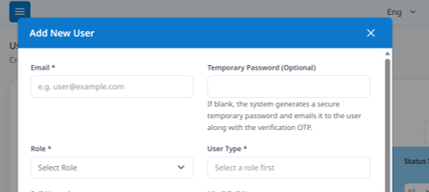 Figure 2: Create new users from ULB/DP/GP
7. Review Applications
- Click on “Review Applications” from the available services section.
- Click on “All Applications” to view state level registration applications received from BWGs and Facilities.
- Click on “Pending at SPCB” to view Log Appeal (Level 2) requests received from facilities.
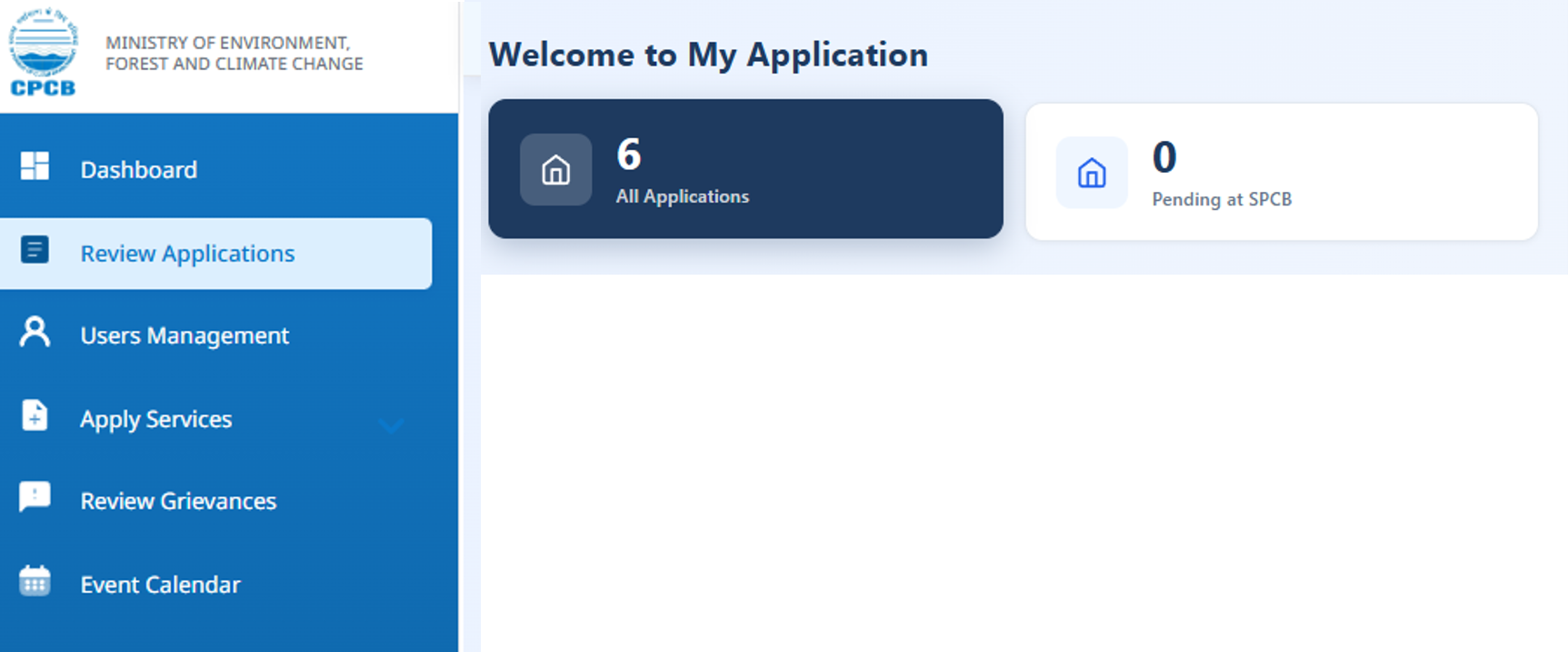 Figure 3: State Level Applications Received
8. Respond to Log Appeal (Level 2) Requests
The SPCB/ PCC must respond to the Log Appeal (Level 2) requests received from facilities within their jurisdiction by either “Approving” or “Rejecting” those requests.
- Click on “Review Applications” from the available services section.
- View the facility request by navigating to the “Pending at SPCB” icon.
- Click on the “Edit” icon to view the submitted application and Log Appeal (Level 2) request
- Under the “Department Action” section, “Approve” or “Reject” the Log Appeal (Level 2) and add a corresponding comment.
 Figure 4: Log Appeal (Level 2)
9. Event Intimation
- Click on “Apply Services” from the available services section
- Click on “Event Intimation”.
- To submit an event intimation form, click on “Intimate Event”.
- To view event intimation history, click on “My Events”.
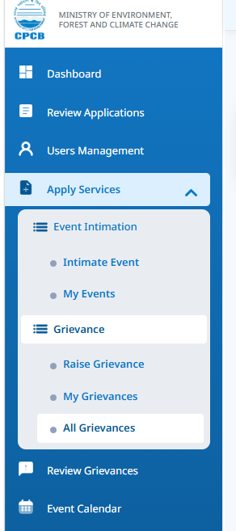 Figure 5: Apply Services Section
10. Grievances
- Click on “Apply Services” from the available services section.
- Click on “Grievance”.
- To raise a new grievance, click on “Raise Grievance".
- To track your submitted grievances, click on “My Grievances".
- To track the status of all the grievances raised with your jurisdiction, click on “All Grievances".
- Click on “Review Grievance” to take action on grievances assigned to you
1. Scope of User Manual
This manual explains the actions to be taken by the District Magistrate (DM) to monitor district level Bulk Waste Generators (BWGs) and Facility registrations, respond to Log Appeals (Level 1) submitted within their jurisdiction.
2. Prerequisites
- Laptop/ PC with a stable internet connection
- Mobile No. and Email should not previously be registered on the Solid Waste Management (SWM) 2026 Centralized Online Portal, with provisions to receive One-Time Passwords (OTPs).
- SPCB/ PCC nodal officer mapped to the state jurisdiction.
3. Registration and User ID for DM
- 1. The District Magistrate must email the Urban/Rural Development Department (UDD/RDD) or Central Pollution Control Board (CPCB) to raise a request for on-boarding on the SWM 2026 Centralized Online Portal. This email should contain the following details:
- Name
- Mobile Number
- Email ID
- State
- District Name
- District Code
- Once on-boarded, the login credentials (email and one time password) will be shared with the DM over email and SMS.
4. Login (Existing User) to the Portal
Open the SWM Portal. Click on “Login” on the landing page.
4.1 Password-based Login
- Choose “Login with Password".
- Enter the registered email address or mobile number, password and CAPTCHA.
- Select “Login”. The portal redirects to the ULB dashboard.
Figure 1: Login to the SWM 2026 Portal
4.2 OTP-based Login
- Choose “Login with OTP".
- Enter the registered email address or mobile number and complete the CAPTCHA.
- Enter the OTPs sent to the registered mobile number or email address.
- Upon verification, the portal redirects to the SPCB dashboard.
5. Dashboard
Select “Dashboard” from the available services section to view the following:
- DM basic details
- BWG registration status
- Facility-wise registration status
6. User Management
Select ‘User Management’ to create login credentials for ULBs/District Panchayat/Gram Panchayat on the portal as following:
- Click on ‘Add User’ and add the applicant details on mentioned on the screen.
- Click on ‘Create’. The user will be intimated on e-mail and they will need to use the same credentials to login on the portal. Once the login is successful, the user status will become ‘Active’ on the portal.
Figure 2: Create new users from ULB/DP/GP
7. Review Applications
- Click on “Review Applications” from the available services section.
- Click on “All Applications” to view active district level registration applications received from BWGs and Facilities.
- Click on “Pending at DM” to view Log Appeal (Level 1) requests received.
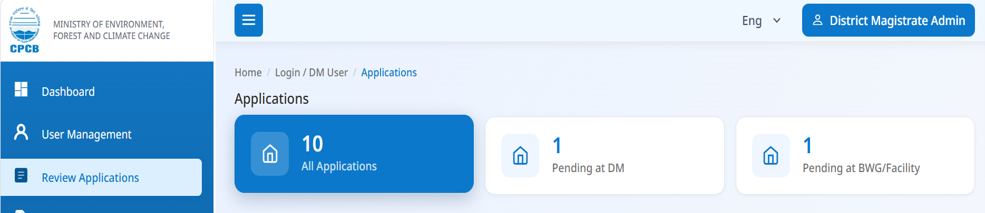 Figure 3: DM Level Applications Received
8. Respond to Log Appeal (Level 1) Requests
The DM must respond to the Log Appeal (Level 1) requests received from facilities within their jurisdiction by either “Approving” or “Rejecting” those requests.
- Click on “Review Applications” from the available services section.
- View the appeal request by navigating to the “Pending at DM” icon.
- Click on the “Edit” icon to view the submitted application and Log Appeal (Level 1) request
- Once the application opens, under the “Department Action” section, “Approve” or “Reject” the Log Appeal (Level 1) and add a corresponding comment.
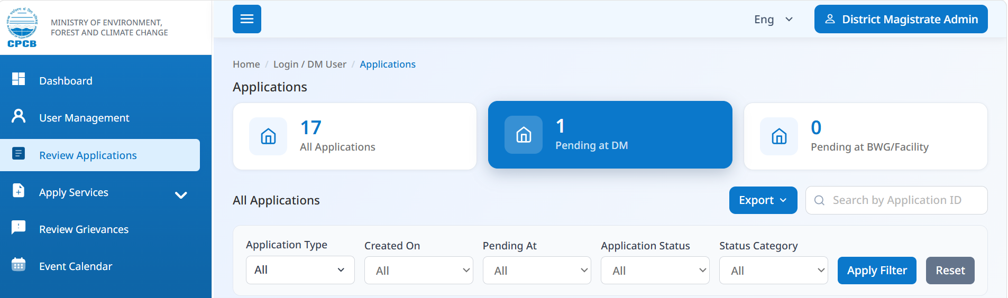 Figure 4: Log Appeal (Level 1)
9. Event Intimation
- Click on “Apply Services” from the available services section
- Click on “Event Intimation”.
- To submit an event intimation form, click on “Intimate Event”.
- To view event intimation history, click on “My Events”.
Figure 5: Apply Services Section
10. Grievances
- Click on “Apply Services” from the available services section.
- Click on “Grievance”.
- To raise a new grievance, click on “Raise Grievance".
- To track your submitted grievances, click on “My Grievances".
- To track the status of all the grievances raised with your jurisdiction, click on “All Grievances".
- Click on “Review Grievance” to take action on grievances assigned to you